Php, Wordpress, WordPress / Security
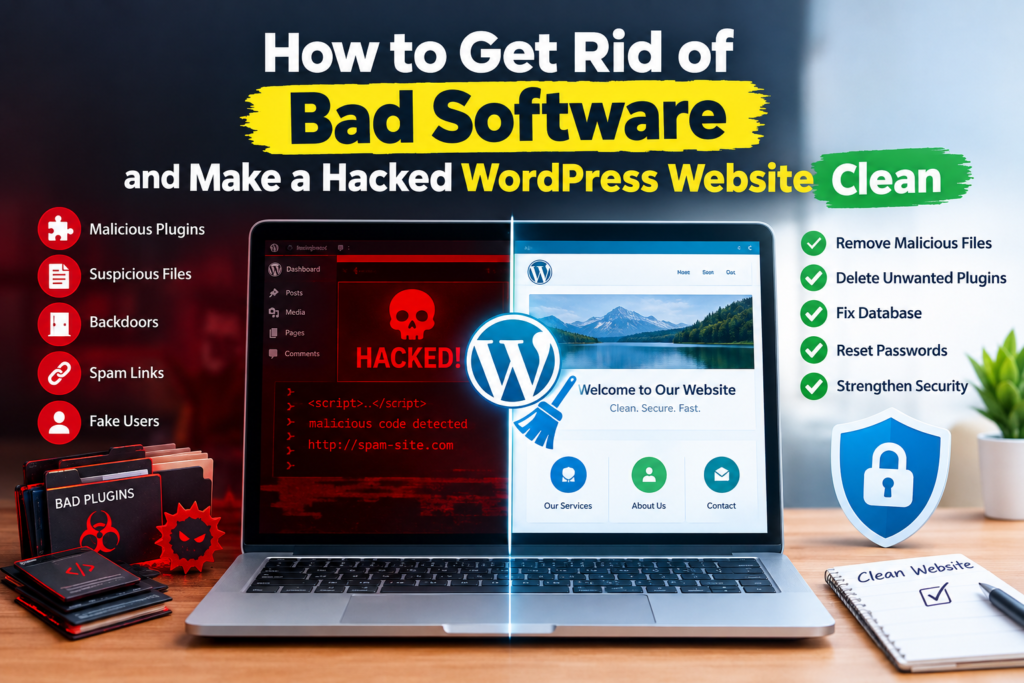
How to Get Rid of Bad Software and Make a Hacked WordPress Website Clean
Oct
If your WordPress website has suddenly started redirecting visitors, displaying spam pages, showing strange advertisements, sending unwanted emails, or triggering malware warnings, your website may have been compromised.
A hacked WordPress website can be stressful, especially when you are unsure what caused the problem or how much damage has been done. The good news is that many compromised WordPress websites can be recovered if you approach the cleanup systematically.
In this guide, we’ll explain how to detect malware, remove malicious software, clean infected WordPress files, secure your website, and prevent the same attack from happening again.
Important: Before deleting suspicious files or making major changes, create a complete backup of your website files and database whenever possible. A backup can be extremely useful during investigation and recovery. WordPress also recommends documenting the symptoms and actions taken during a security incident. (WordPress.org)
What Is a Hacked WordPress Website?
A WordPress website is considered compromised when an unauthorized person or malicious program gains access and modifies the website.
Attackers may modify:
- WordPress core files
- Plugins
- Themes
- Database records
.htaccesswp-config.php- User accounts
- Administrator accounts
- Media directories
- JavaScript files
- PHP files
- SEO metadata
- Website redirects
In some cases, attackers don’t immediately make visible changes. Instead, they install a backdoor that allows them to return later.
This is why simply deleting the obvious malicious file may not completely clean a hacked website.
Common Signs Your WordPress Website Has Been Hacked
A compromised website can show many different symptoms.
Some of the most common indicators include:
1. Unexpected redirects
Visitors may be redirected to:
- Spam websites
- Gambling websites
- Adult websites
- Fake software downloads
- Phishing pages
- Other suspicious domains
2. Unknown pages
You may suddenly discover hundreds or thousands of pages that you never created.
Examples include:
/casino//viagra//cheap-products/- Random alphanumeric URLs
- Foreign-language spam pages
3. Google security warnings
Google or another security service may display a warning that your website contains malware or may harm visitors.
4. Your website is sending spam
A compromised WordPress installation can sometimes be abused to send spam emails or other unwanted content.
5. Unknown administrator accounts
Check WordPress → Users for administrator accounts that you don’t recognize.
6. Strange code inside files
You may find unfamiliar PHP, JavaScript, iframe, or encoded code inside your website files.
7. Website performance problems
A hacked website may suddenly become slow because malicious scripts are consuming server resources.
8. Hosting provider suspends the website
Your hosting company may temporarily disable the website after detecting malware, phishing activity, spam, or suspicious server behavior.
These are all potential indicators of compromise. WordPress specifically lists blacklisting, malware warnings, unauthorized users, and visible changes as examples of possible indicators. (WordPress.org)
Why Do WordPress Websites Get Hacked?
WordPress itself is not necessarily the cause of a security breach. Most compromises occur because of vulnerabilities, weak credentials, outdated software, or poor security practices.
Common causes include:
Outdated Plugins
An outdated plugin may contain a security vulnerability that attackers can exploit.
Only install plugins from trustworthy sources and keep them updated.
Outdated Themes
Old themes can contain vulnerable code or outdated libraries.
Outdated WordPress Core
Running an old version of WordPress can expose your website to known vulnerabilities.
Weak Passwords
Simple passwords make it easier for attackers to gain access through credential attacks.
Stolen Login Credentials
Your WordPress password may be stolen through:
- Malware on your computer
- Phishing
- Password reuse
- Insecure networks
- Browser extensions
- Compromised third-party services
WordPress recommends reviewing and securing access to WordPress, hosting, FTP/SFTP, database and other administrative accounts after a compromise. (WordPress.org)
Step 1: Put the Website Under Control
If you believe your website has been hacked, don’t immediately start deleting random files.
First, limit further damage.
Depending on the situation, you can:
- Enable maintenance mode
- Temporarily restrict access
- Contact your hosting provider
- Disable suspicious plugins
- Prevent unauthorized administrator access
- Stop suspicious scripts or cron jobs
If the website handles sensitive information or online transactions, consider taking additional precautions to protect visitors and customers.
Step 2: Create a Complete Backup
Before cleaning the website, create a backup of:
- WordPress files
- Database
wp-content- Themes
- Plugins
- Uploads
- Configuration files
- Server logs, if available
Even an infected backup can be useful for forensic investigation.
However, do not automatically restore an old backup without investigating it. If the backup was created after the website was compromised, it may already contain the malware.
WordPress recommends creating a snapshot before beginning the cleanup process. (WordPress.org)
Step 3: Scan the Website for Malware
A malware scanner can help identify suspicious files and code.
Popular WordPress security solutions include:
- Wordfence
- Sucuri
- Quttera
- Other reputable security scanners
You can also use remote website scanners to identify publicly visible malicious content.
However, don’t assume that one scan proves the website is completely clean.
A sophisticated infection may hide in:
- Database records
- Plugin files
- Theme files
mu-plugins- Uploaded PHP files
- Cron jobs
.htaccess- Configuration files
- Administrator accounts
WordPress recommends combining different types of scanning and also checking the local computer used to administer the site. (WordPress.org)
Step 4: Scan Your Computer
This step is often overlooked.
If your computer has malware, cleaning the website may not be enough.
An attacker could potentially obtain:
- WordPress credentials
- FTP credentials
- Hosting passwords
- Database credentials
- Session information
Run a full malware and antivirus scan on computers that were used to access the affected website.
If possible, use a trusted and fully updated security solution.
Step 5: Check WordPress Users
Go to:
WordPress Dashboard → Users
Review every administrator and privileged account.
Look for:
- Unknown administrators
- Strange usernames
- Suspicious email addresses
- Recently created accounts
- Users with unexpected roles
Remove unauthorized accounts after preserving any evidence you may need for investigation.
Don’t forget to check whether legitimate accounts have been modified.
Step 6: Change All Important Passwords
Changing only your WordPress administrator password is not enough.
After a compromise, consider changing:
- WordPress passwords
- Hosting account password
- cPanel/Plesk password
- FTP/SFTP credentials
- Database credentials
- Email passwords
- SSH credentials
- API keys
- CDN credentials
- DNS account credentials
Use unique, long passwords for each service.
Also enable two-factor authentication (2FA) wherever available.
WordPress specifically recommends improving access controls and changing credentials across the different access points used to manage the website. (WordPress.org)
Step 7: Replace WordPress Core Files
If you suspect that WordPress core files have been modified, replacing them with clean files can help.
Download a fresh copy of WordPress from the official WordPress source and replace the core files.
The directories commonly replaced during a cleanup include:
/wp-admin/
/wp-includes/
Be careful with files such as:
wp-config.phpbecause this file contains your database configuration and should be reviewed rather than blindly overwritten.
WordPress’s official hacked-site guidance recommends replacing core components when appropriate and paying particular attention to files that may have been modified. (WordPress.org)
Step 8: Reinstall Plugins and Themes
Plugins and themes are common places to investigate after a compromise.
Instead of keeping suspicious or modified plugin files, consider:
- Removing the affected plugin.
- Downloading a fresh copy from the official source.
- Installing the clean version.
- Updating it to the latest compatible release.
Do the same with themes.
Avoid nulled or pirated plugins and themes. They can contain hidden malware, backdoors, spam links, or unauthorized code.
Step 9: Carefully Inspect the wp-content Directory
The wp-content directory deserves special attention because it contains:
plugins/
themes/
uploads/
The uploads directory is particularly important.
Normally, media files such as images and documents are stored there. However, attackers may attempt to place executable files in writable directories.
Look for:
- Unexpected PHP files
- Randomly named files
- Suspicious scripts
- Recently modified files
- Unknown directories
- Files that don’t belong to your website
Don’t delete files simply because their names look unusual. Verify what each file does before removing it.
Step 10: Check .htaccess
The .htaccess file can be modified by attackers to create malicious redirects or other unexpected behavior.
Look for suspicious rules involving:
- Redirects
- Unknown domains
- Obfuscated code
- Rewrite rules you didn’t create
- Unexpected conditions
If you know what a clean .htaccess file should look like for your setup, compare the current file against it.
WordPress’s hacked-site documentation specifically highlights .htaccess as a file that commonly deserves inspection during malware cleanup. (WordPress.org)
Step 11: Check Important PHP Files
Attackers often modify commonly loaded PHP files.
Pay particular attention to:
index.php
functions.php
header.php
footer.php
wp-config.php
Also inspect plugin and theme files.
Suspicious code can sometimes be hidden through:
- Base64 encoding
- Obfuscated PHP
- Dynamically generated functions
- Unusual
eval()usage - Unexpected remote requests
- Hidden iframe injections
However, don’t remove PHP code simply because it looks complicated. Some legitimate WordPress plugins use complex or encoded-looking code.
When in doubt, compare the file against a clean version from the original plugin, theme, or WordPress package.
Step 12: Check the Database
Malware doesn’t always live in files.
Attackers may inject malicious content directly into the WordPress database.
Check for:
- Unknown administrator accounts
- Suspicious posts
- Spam pages
- Modified options
- Injected JavaScript
- Strange site settings
- Unknown redirects
- Spam links
- Malicious serialized data
Before modifying the database, create a backup.
Database cleanup should be performed carefully because deleting the wrong record can break the website.
Step 13: Check Scheduled Tasks and Persistence
Some infections are designed to come back after being removed.
Check for suspicious:
- WordPress cron jobs
- Server cron jobs
- Unknown plugins
- Must-use plugins
- PHP files
- Server scripts
- Administrator accounts
- API keys
If malware repeatedly returns after cleanup, you should assume that another persistence mechanism may still exist.
Step 14: Update Everything
After removing the infection, update:
- WordPress
- Plugins
- Themes
- PHP
- Server software where applicable
Remove plugins and themes that are no longer maintained or required.
Don’t keep unused plugins installed simply because they are inactive.
Step 15: Change Passwords Again After Cleanup
Changing credentials immediately after discovering a hack is important.
But after completing the cleanup, changing credentials again is a useful additional precaution.
Why?
Because you cannot always be certain that credentials weren’t captured before the malware was removed.
Change important credentials after the environment has been cleaned.
Step 16: Check Google Search Console
If the website was hacked, Google may have discovered spam pages or malicious content.
Check:
- Security Issues
- Manual Actions
- Indexing
- Pages
- Sitemaps
- Search results
- Unexpected URLs
If thousands of spam URLs were generated during the attack, removing the malware is only the first step. Search engines may need time to recrawl the website and remove URLs that no longer exist.
Don’t use robots.txt as a substitute for cleaning the website.
Step 17: Check Website Blacklists
A compromised website may be flagged by security services.
Check whether your website is being reported for:
- Malware
- Phishing
- Spam
- Suspicious downloads
- Unsafe content
Google, browser security systems, hosting providers, and other security services may independently detect malicious activity.
WordPress recommends checking relevant webmaster and security services after a compromise. (WordPress.org)
Step 18: Find Out How the Website Was Hacked
Cleaning the website is only half the job.
You also need to determine:
How did the attacker get in?
Possible attack vectors include:
- Vulnerable plugin
- Vulnerable theme
- Outdated WordPress
- Stolen password
- Weak password
- Compromised hosting account
- Infected administrator computer
- Vulnerable server software
- Malicious third-party code
Check available:
- Hosting logs
- Access logs
- Error logs
- WordPress activity logs
- Plugin logs
- File modification dates
Finding the original entry point helps prevent reinfection.
Why Your Website May Get Hacked Again After Cleaning
One of the most frustrating situations is:
“I removed the malware, but it came back.”
This usually indicates that something was missed.
For example:
- A backdoor remains.
- A vulnerable plugin is still installed.
- An administrator account remains compromised.
- FTP credentials are still stolen.
- The hosting account is compromised.
- A malicious cron job remains.
- The database still contains malicious code.
- An infected computer is still being used.
- A modified plugin or theme was not replaced.
Simply deleting the visible malware is therefore not always enough.
A recent WordPress support discussion also illustrates why reinfection can occur when persistence mechanisms or compromised access points remain. (WordPress.org)
Should You Restore a Backup or Clean the Existing Website?
There are two common approaches.
Option 1: Restore a Known-Clean Backup
If you have a reliable backup from before the compromise, restoring it can be the quickest solution.
However, you still need to:
- Update WordPress
- Update plugins
- Update themes
- Change passwords
- Investigate the vulnerability
- Secure the hosting environment
Otherwise, the same vulnerability could be exploited again.
Option 2: Manually Clean the Website
Manual cleanup may be necessary when:
- No clean backup exists
- The website contains recent customer data
- The site is an e-commerce store
- You cannot lose recent orders
- You need to preserve recent content
- The infection is limited to certain files
For complex infections, professional malware removal may be safer than attempting to remove malicious code manually.
How to Prevent Future WordPress Hacks
Once your website is clean, focus on prevention.
Keep WordPress Updated
Always keep WordPress on a supported version.
Update Plugins and Themes
Install updates regularly.
Remove Unused Plugins
If you don’t need a plugin, remove it.
Avoid Pirated Software
Never use nulled WordPress plugins or themes on a production website.
Use Strong Passwords
Every important account should have a unique password.
Enable Two-Factor Authentication
Protect administrator accounts with 2FA whenever possible.
Use Security Monitoring
A reputable security plugin or external monitoring service can help detect suspicious activity.
Maintain Regular Backups
Keep automatic backups of:
- Database
- Website files
- Configuration
Ideally, maintain backups outside the same hosting account.
Secure Hosting Access
Protect cPanel, FTP/SFTP, SSH and other hosting credentials.
Monitor Administrator Accounts
Regularly check for unknown users.
Monitor Google Search Console
Unexpected pages or search-result changes can sometimes reveal a compromise.
WordPress Malware Removal Checklist
Use this checklist when cleaning a hacked WordPress website:
- Identify the symptoms
- Put the website under control
- Create a complete backup
- Contact the hosting provider
- Scan the website
- Scan administrator computers
- Check WordPress users
- Remove unauthorized accounts
- Change all passwords
- Enable 2FA
- Replace WordPress core files
- Reinstall suspicious plugins
- Reinstall suspicious themes
- Inspect
wp-content - Check the uploads directory
- Check
.htaccess - Inspect important PHP files
- Check the database
- Check cron jobs and persistence
- Update WordPress
- Update plugins
- Update themes
- Check Google Search Console
- Check blacklist warnings
- Identify the original attack vector
- Create a new clean backup
- Monitor the website for reinfection
When Should You Hire a WordPress Malware Removal Expert?
DIY cleanup may be possible for a simple infection, but professional help is worth considering if:
- Malware keeps returning
- You cannot identify the malicious files
- Your website has hundreds of infected files
- The database has been compromised
- Your hosting account has been affected
- Your website is redirecting visitors
- Google has flagged your website
- Your website has been blacklisted
- The site contains customer or payment information
- You suspect a backdoor
- You have lost administrator access
- The website is generating thousands of spam pages
A professional can investigate the infection, clean the files and database, identify possible attack vectors, and help harden the website afterward.
Final Thoughts
A hacked WordPress website should be treated as a security incident rather than simply a technical error.
Removing one suspicious file or installing a security plugin may not be enough. A proper cleanup should involve backup, investigation, malware scanning, file and database inspection, credential rotation, software updates, vulnerability identification, and security hardening.
The most important goal is not just to make the website look normal again. You also need to determine how the attacker gained access and close the security gap that allowed the compromise to happen.
If your WordPress website has been hacked, malware removal is something that should be handled carefully. A rushed cleanup can leave hidden backdoors behind and result in the website being compromised again.
Need help cleaning a hacked WordPress website? Delight IT Solutions provides WordPress malware removal, hacked website cleanup, security fixes, malware scanning, and WordPress maintenance services to help businesses recover compromised websites and improve their security.
For additional guidance, WordPress maintains an official hacked-site recovery guide covering investigation, scanning, access control, backups, cleanup, and post-hack security measures. (WordPress.org)
WordPress official hacked-site recovery guide
